12) Let's run a Performance report to see how well my station is doing DX-wise.
DXtreme Station Log 15 offers a multitude of reports as well as
integration with Afreet DX Atlas!1
I can easily run a Performance report for DXCC Entities, Continents, Grids, CQ Zones,
WAS, Digital Applications, and more ... for my
entire log, or just a subset of my log.
I begin by choosing Entities as the subject of the report and that I want to include deleted entities.
Next I select the display of bookended subjects — in that prefixes and entity names will appear on both sides
of each record — and that I want to see a DX Atlas map of entity pins.
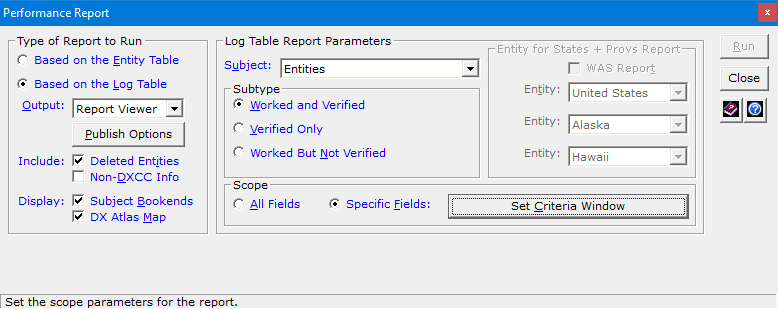
While I can run a report for all my data, I click Set Criteria Window
to run a Performance report that shows DXCC entities that are:
1) Verified
2) By LoTW
3) While operating FT8
4) Using JTDX
5) Running 1 to 50 watts
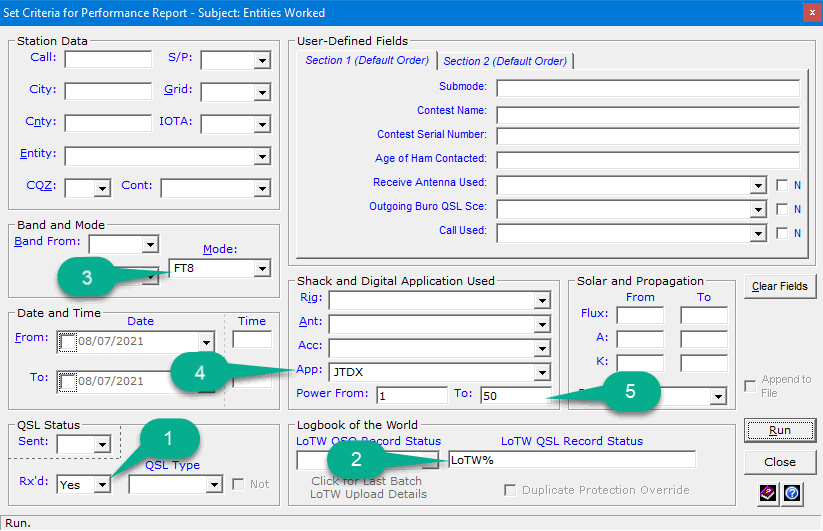
I click Run.
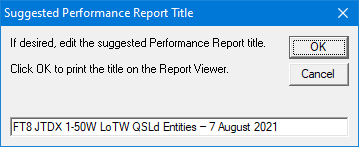
And edit the suggested report name, adding a little more detail. Then I click OK.
You can define and run your own reports on the Set Criteria
window! Perhaps you'd like to run a report for a
specific antenna, to see how well it performs ...
... or for a particular band, mode, or user-defined field.
As you can see, there are many possibilities on the
Set Criteria window!
1 — A software license for DX Atlas is required only if you want to use DX
Atlas.
Home |
Checking DX Spots |
Adding the Log Entry and Automatically Uploading to LoTW |
Using JT Log Entry Processing
Using the Outgoing QSL Web Service |
Creating QSL and Address Labels |
Printing QSL and Address Labels |
Capturing an Improv Image
Managing Paper QSLs |
Managing LoTW QSLs |
Monitoring Performance |
Analyzing Your DXCC Status |
Other Fine Features |
Implementation and More
Click Here to Return Home