15) Here's a really great feature I find myself using more and more: DXCC Analytics.
This window-based tool lets me analyze my DXCC data and quickly access
the specific log entries upon which I need to take some kind of
action, such as submitting or re-submitting a QSL or e-mailing
the ham I contacted.
I begin by selecting a desired mode, or all modes. DXCC Analytics
then goes to work, building and displaying a record set showing the number of
band entities Worked, Verified, and Worked But Not Verified
(labeled Delta) for each band and for all bands.
As an option, check boxes let me specify whether to include Deleted and Non-DXCC entities
in my analysis, and Power From and To boxes let me filter the analysis by the output
power used; I can specify a single power level, or a range of power levels.
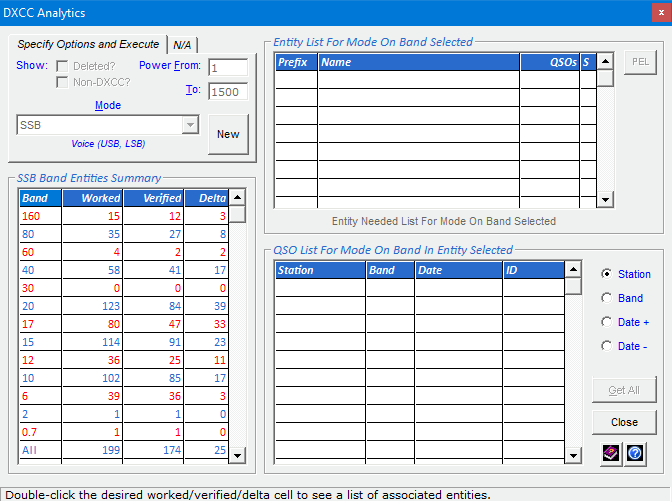
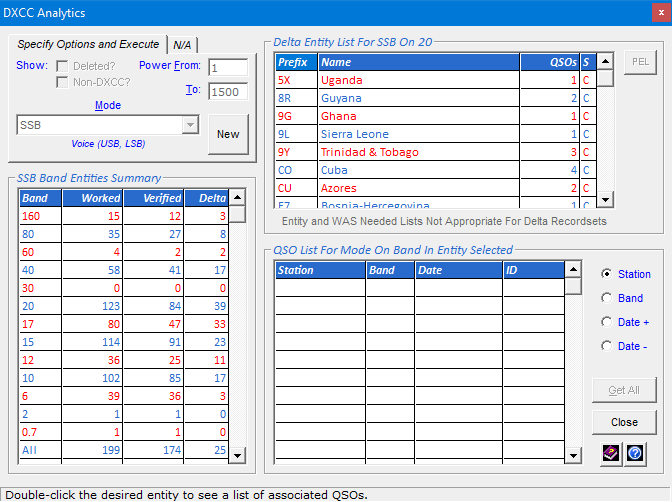
When I double-click a Worked, Verified, or Delta data element
for a desired band, or for all bands, I see a list of entities
that satisfy the element I chose, along with the
number of QSOs in each entity.
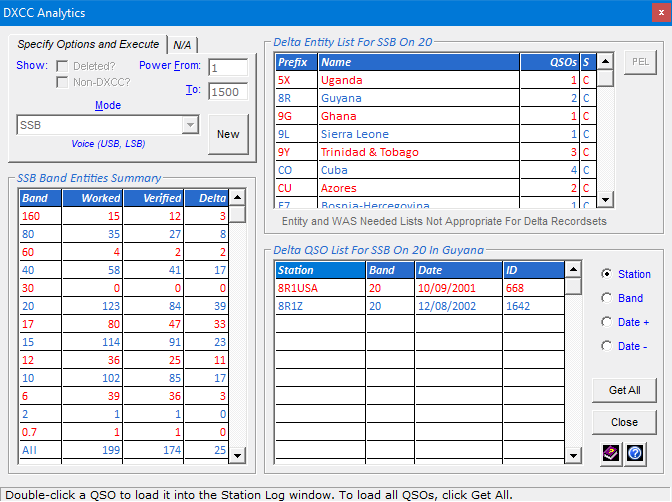
When I double-click a desired entity, I see a list of its QSOs, including the
band and date. I can sort this list by Station, Band,
Date Ascending, or Date Descending.
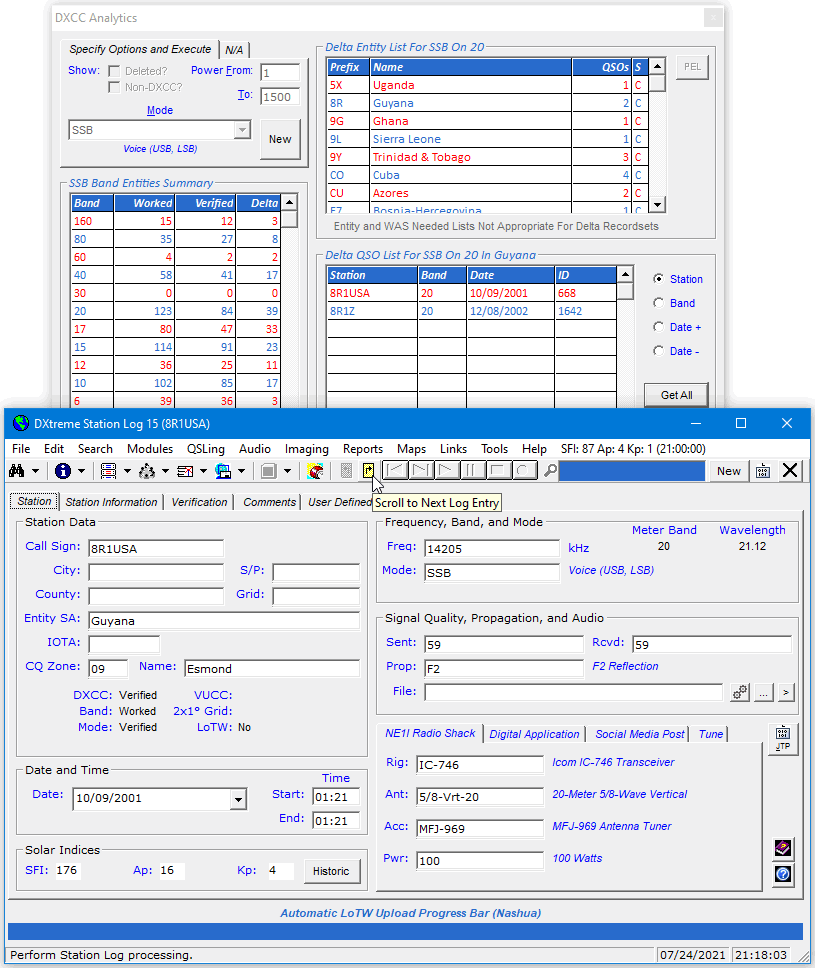
I can then load one or all of the QSOs into the Station Log window
to perform the desired action on them ... while the DXCC Analytics
window persists for further analysis.
DXCC Needed Lists
After double-clicking a Worked or Verified data element
for a desired band or for all bands in the Band Entities Summary area,
and after the Entity List area displays its list of entities,
I can click the Entity Needed List hyperlink
to generate a list of
entities I still need for the mode, data element, and band(s) clicked.
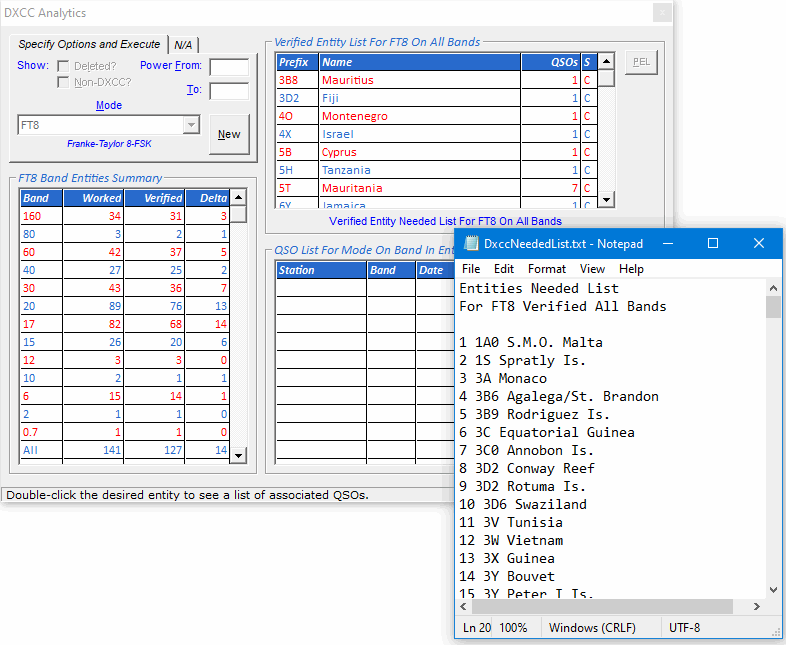
If I want to retain my DXCC needed lists after viewing them, on the File menu of
Notepad, I can click Save As to save each list to a desired location using
a unique file name. Alternatively, I can print each list.
Previous Entity List (PEL) Feature
DXCC Analytics works with lots of data, and where my database has
tens of thousands of QSOs, I must give it some time to work. The results are worth
the wait. When I want to work with an entity list over several days, however,
I can use the Previous Entity List (PEL) feature, which I'll describe next.
When it builds an entity list, DXCC Analytics saves it to a local file,
enabling me to reload its data later — in seconds — to continue working with it.
To reload a PEL (Previous Entity List), I click the PEL button.
The Select Previous Entity List window appears to let me select
the entity list I want to reload.
The data appears immediately, so I can continue working with it.
Home |
Checking DX Spots |
Adding the Log Entry and Automatically Uploading to LoTW |
Using JT Log Entry Processing
Using the Outgoing QSL Web Service |
Creating QSL and Address Labels |
Printing QSL and Address Labels |
Capturing an Improv Image
Managing Paper QSLs |
Managing LoTW QSLs |
Monitoring Performance |
Analyzing Your DXCC Status |
Other Fine Features |
Implementation and More
Click Here to Return Home