4) I like the new Outgoing QSL Web Service facility a lot.
With it, I can send official QSL cards via a third-party QSL bureau web site
in a fraction of the time it takes to order QSL cards, print and apply labels to them,
sort them, write a check, supply proof of ARRL membership, pack the whole thing up,
address the box or envelope, apply postage, and place it in the mailbox.
Whew!
So I chose QDure1 as my preferred Outgoing QSL Web Service at:
https://qsl.ure.es/en/
How It Works
One-Time Preferences Configuration
On the Outgoing QSLs tab of Preferences, I type the name of
the service and its Web address.
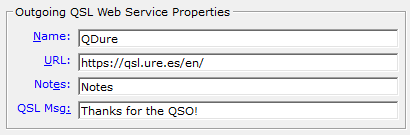
The name I type appears in menus and dialog boxes throughout Station Log 15
(hence the name QDure in my screen shots).
In the Notes box, I type text that will appear on all bureau
QSLs via the NOTES ADIF tag.
And in the QSL Msg text box, I type text that will appear on all bureau
QSLs via the QSLMSG ADIF tag.
(Outgoing QSL Web Service records are managed per database.)
Creating a QSL Record
I add, modify, or display a log entry.
On the Verification/Outgoing
tab, I set the Outgoing QSL Sent box to Yes and click OK.
(As an alternative, I can default the Sent box to Yes automatically in Preferences).
Next, on the Station Log toolbar, click the Process Outgoing QSL
Web Service button.

Station Log 15 creates the Outgoing QSL Web Service record and prompts
me for the next action to perform.
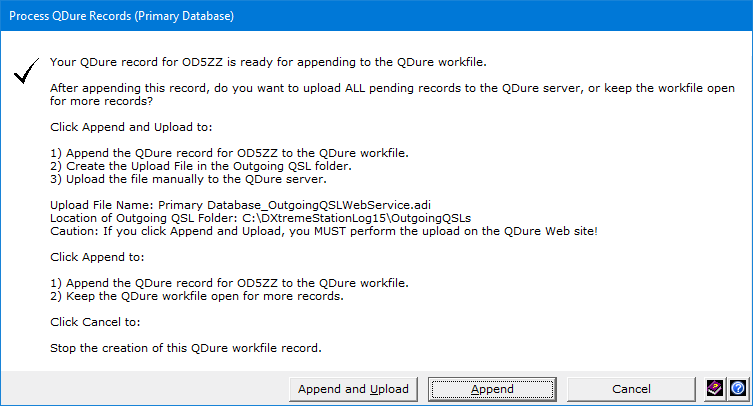
I click the Append button because I'm not ready to upload.
When It's Time to Upload
When I am ready to upload — likely when I have a decent amount of records in the workfile —
I can do so after appending a record as described above.
Or with no log entry on display, I can click the Process Outgoing QSL Web Service
button ...
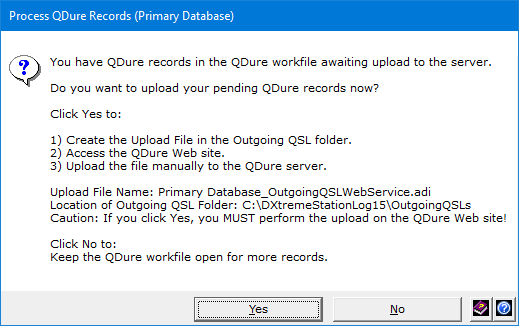
and then Yes to upload all pending workfile records to the server.
Station Log 15 displays the Outgoing QSL Web Service site
in my web browser where I submit the upload file manually.
(The Outgoing QSL Web Service site provides upload instructions.)
Viewing the Workfile
I can click the arrow next to the Process Outgoing QSL Web Service button
and then View/Edit the {Name of Outgoing QSL Web Service} Workfile whenever I want to see
or edit the records in the workfile.
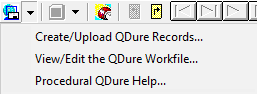
The records are ADIF-compliant and appear in Notepad.
1 — QDure is owned by Unión de Radioaficionados Españoles. Copyright © 2021 - Unión de Radioaficionados Españoles.
Home |
Checking DX Spots |
Adding the Log Entry and Automatically Uploading to LoTW |
Using JT Log Entry Processing
Using the Outgoing QSL Web Service |
Creating QSL and Address Labels |
Printing QSL and Address Labels |
Capturing an Improv Image
Managing Paper QSLs |
Managing LoTW QSLs |
Monitoring Performance |
Analyzing Your DXCC Status |
Other Fine Features |
Implementation and More
Click Here to Return Home