5) Let's create QSL and address labels for an existing log entry.
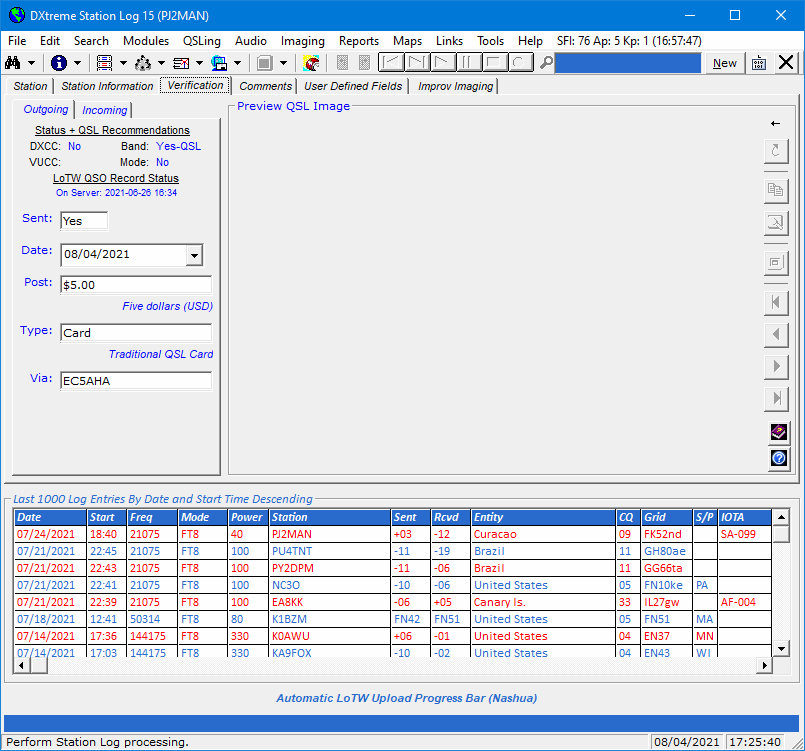
On the Verification/Outgoing tab, I modify the log entry to indicate I'm sending a QSL,
including a $5 donation, and sending my Card to QSL Manager EC5AHA.
I click OK to save the log entry.
By the way, notice how the Status + QSL Recommendations area
informs me that Curacao is a new Band entity (as indicated by the word, Yes)
and that I should QSL.
I click the Create QSL toolbar button  to access the Create Direct Print QSL Labels window.
For the closing expression, QSL request, and signature, I:
Accept the closing expression, F2, which is the propagation mode from the
Station Log window.
Click Pse QSL as my QSL request.
Select my standard signature text, "Tnx QSO 73 Bob," which is defined in Preferences.
For the QSO lines of the label, I:
Double-click label 3 in the Available box (3 then appears in the Active box).
Click the QSO Data option button.
Click Commit to reserve Label 3 for PJ2MAN's QSL data.
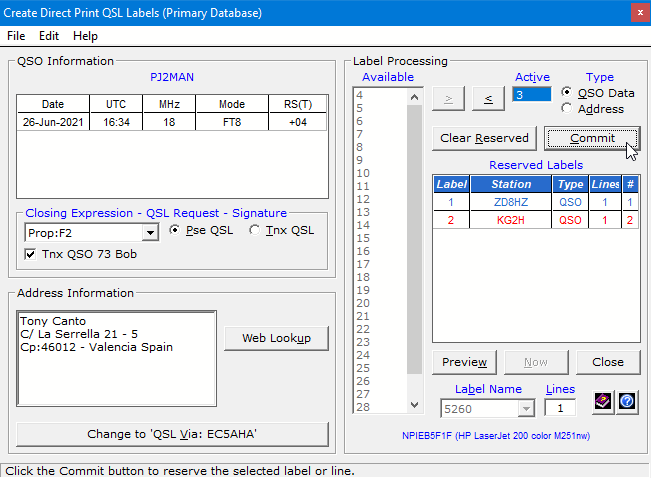
There it is in the Reserved Labels list. Along with the other labels I've created.
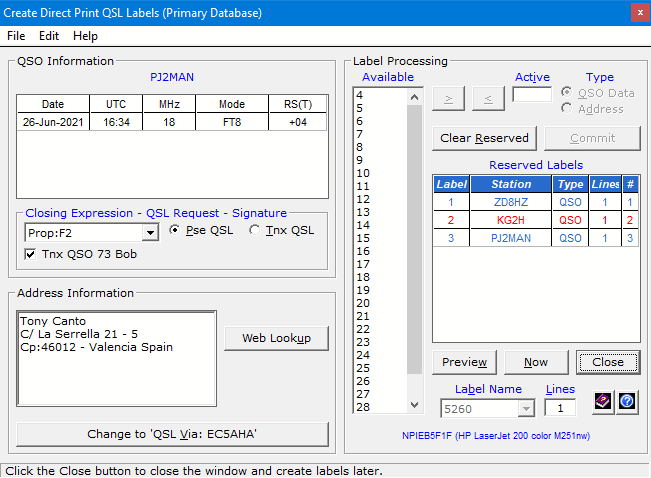
(By the way, you can select in Preferences whether to display the Band or MHz on
Direct Print labels.)
For the Address label, I:
Double-click label 4 in the Available box.
Click the Address option button.
Click Commit to reserve Label 4 for PJ2MAN's QSL manager's address.
There it is in the Reserved Labels list.
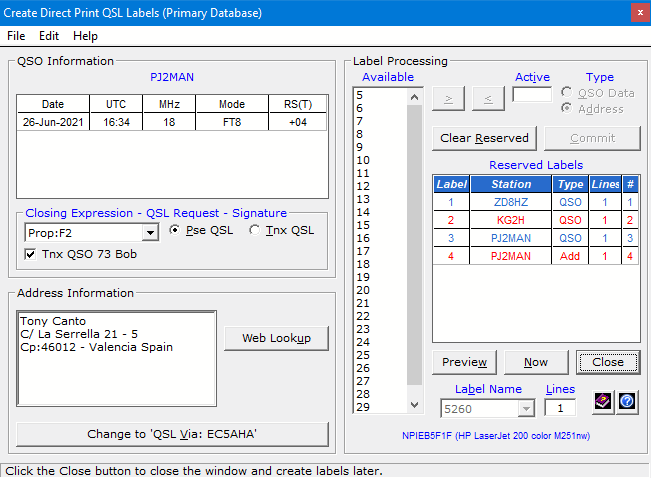
I usually like to create two address labels — one for the mailing envelope, one for the SASE.
So I create another address label, this time for Label 5.
There it is in the Reserved Labels list.
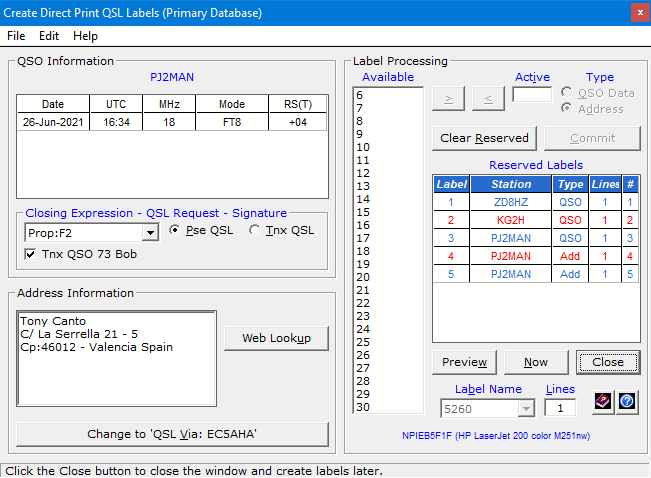
Usually, I would click Close right now to create more labels later ... you know, as I work more stations.
But I want to show you how to print them.
Don't worry! You lose nothing when you print just a subset of your available labels.
Why? Because you can skip around when creating labels ... you know, like resuming with Label 6.
Which makes it easy to print on a partial sheet of label stock.
So I'll go ahead and ...
Home |
Checking DX Spots |
Adding the Log Entry and Automatically Uploading to LoTW |
Using JT Log Entry Processing
Using the Outgoing QSL Web Service |
Creating QSL and Address Labels |
Printing QSL and Address Labels |
Capturing an Improv Image
Managing Paper QSLs |
Managing LoTW QSLs |
Monitoring Performance |
Analyzing Your DXCC Status |
Other Fine Features |
Implementation and More
Click Here to Return Home