10) I've already described Station Log 15's
Automatic LoTW Upload Facility,
how it uploads new log entries to Logbook of the World automatically.
Now I'll describe Station Log 15's LoTW QSL Update Utility,
how it updates my Station Log database with new LoTW QSL records.
First, I download the "QSL Report" from the
Logbook of the World Web site.
Then, on the QSLing menu of the Station Log window, I click
Perform LoTW QSL Update.
On the LoTW QSL Update Utility, I set the appropriate
options and click Start. The utility updates my database
with LoTW QSLs.
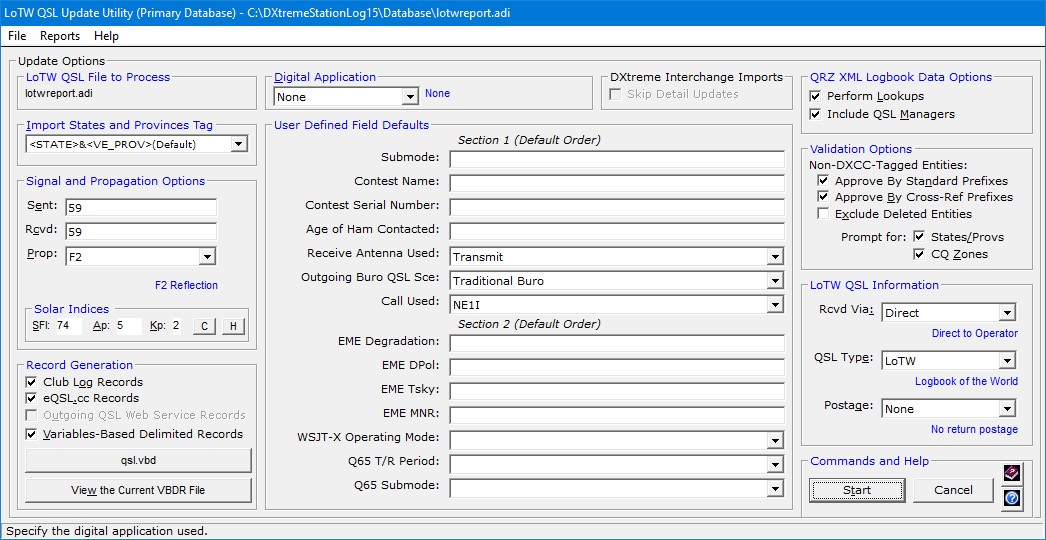
Processing Unmatched LoTW QSL Records
The LoTW QSL Update Utility contains fields and functions designed for use in the
ADIF Import Utility
(which enables you to import log entries from
ADIF files).
Why?
Because if your Station Log database does not contain the log entries
LoTW expects —
which we'll call unmatched LoTW QSL records —
the LoTW QSL Update Utility, with your permission, imports those
unmatched LoTW QSL records as new, verified log entries; or it sets them aside for
later processing as you see fit.
Accordingly, many of the fields on the LoTW QSL Update Utility window
enable you to set options that control the importing of unmatched LoTW QSL records,
just in case they occur.
Creating Club Log Records
The Create Club Log Records check box lets you specify whether to create
Club Log verification records as you update your database with LoTW QSLs.
The records are appended to the same workfile as that used for automatic and manual
Club Log record creation on the Station Log window, leaving the workfile open
for the non-batch creation of additional records.
LoTW QSL Record Status Display
The LoTW QSL Update Utility sets LoTW QSLs as the
Official Verification in log entries
that are not already verified. Why? Because you may have earlier,
for example, set a log entry to Verified
by means of a QSL card making the card
the Official Verification of the log entry
(as indicated
by a Type field setting of Card on the Verification/Incoming tab of the
Station Log window).
Put simply, the utility will not override something
you've already done.
To provide an indication of LoTW QSL Status in all log entries —
including those log entries
where the LoTW QSL is not the Official
Verification — the utility
saves LoTW QSL Status information separately for each matched record.
And it displays the LoTW QSL Status information in the LoTW QSL Record Status
field on the
Verification/Incoming tab of the Station Log window as:
LoTW <QSL DATE>
where
<QSL DATE> is in the form
yyyymmdd,
as derived from the
QSL field of each LoTW verification record.
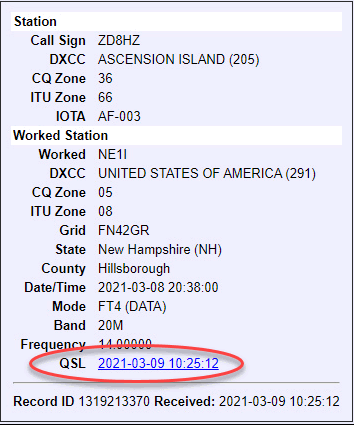
Without LoTW QSL Record Status display, they'd be no indication of
LoTW QSL Status in those log entries where the LoTW QSL is not the
Official Verification.
This is important because I can perform Advanced Searches and run Performance,
Bands, and Stations reports based on the LoTW QSL Record Status
stored in each log entry.
You can, too. A topic in the main DXtreme Station Log 15 Help system explains how.
Home |
Checking DX Spots |
Adding the Log Entry and Automatically Uploading to LoTW |
Using JT Log Entry Processing
Using the Outgoing QSL Web Service |
Creating QSL and Address Labels |
Printing QSL and Address Labels |
Capturing an Improv Image
Managing Paper QSLs |
Managing LoTW QSLs |
Monitoring Performance |
Analyzing Your DXCC Status |
Other Fine Features |
Implementation and More
Click Here to Return Home